> ## Documentation Index
> Fetch the complete documentation index at: https://doc.codecode.me/llms.txt
> Use this file to discover all available pages before exploring further.
# Discord Translator
> Translate messages on Discord Web.
## Discord Translator Pro Released
It no longer depends on Discord Web for translation and can better preserve the original chat message format.
Users who already have a Discord Translator license can now try Discord Translator Pro.
Click here to [download Discord Translator Pro](https://chromewebstore.google.com/detail/gfpempeeppmcpmmkkpokhkhamhkcddjm?utm_source=item-share-cb).
### Important Notes
**License activation limit**
If your license has reached the maximum number of activations, please follow this guide to reset it:
[https://doc.codecode.me/troubleshooting/how-to-reset-license](https://doc.codecode.me/troubleshooting/how-to-reset-license)
**Compatibility**
Discord Translator and Discord Translator Pro cannot be used at the same time.
Before using Discord Translator Pro, please disable or uninstall Discord Translator first.
**License**
Discord Translator Pro requires a separate license purchase.
For now, existing Discord Translator license users can try Discord Translator Pro.
***
## About Discord Translator
The following sections introduce Discord Translator, including its Premium Plan, options page, and translation features.
Discord Translator is the original extension that works with Discord Web. If you want to use Discord Translator Pro, please refer to the Discord Translator Pro section above.
## Premium Plan
| Feature | Free Plan | Premium Plan |
| ----------------------- | --------- | ------------ |
| Auto Translation | 100 / Day | No Limit |
| Button Translation | 100 / Day | No Limit |
| Quick Input Translation | 100 / Day | No Limit |
Click here to [upgrade to Premium](https://discordtranslator.codecode.me/#pricing) and enjoy unlimited translation.
## Options Page
### Pop-up Settings
Click the extension icon in your browser toolbar to open the pop-up settings for Discord Translator. From here, you can quickly enable or disable the translator, choose your preferred target language, and access additional settings.
Use the pop-up for quick changes without opening the full options page.
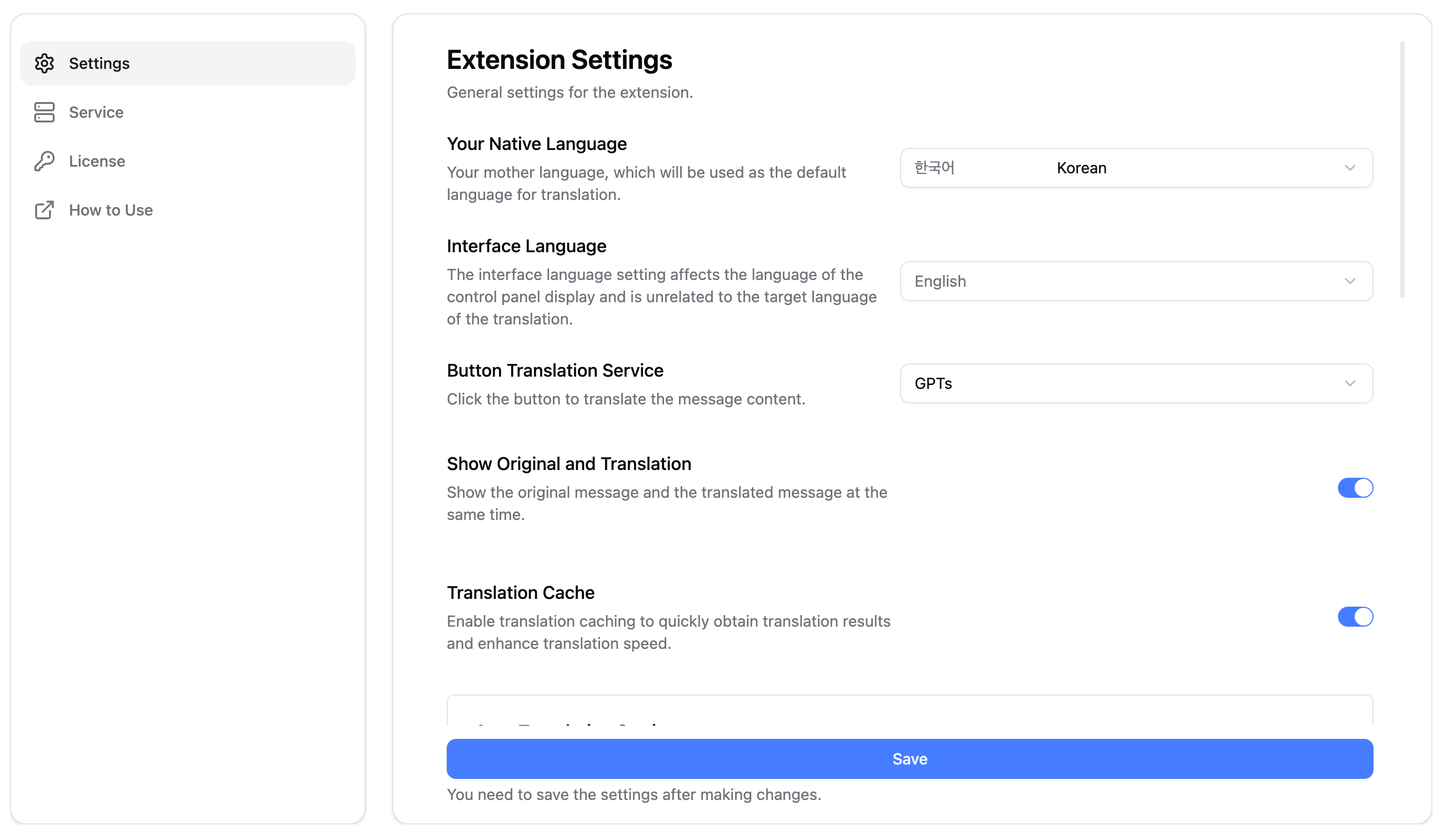
### Full Options Page
Right-click the extension icon and select "Options" to access the full settings page. This page provides more detailed configuration options for Discord Translator.
The full options page is recommended for first-time setup or advanced
configurations.
## Auto Translation
### Click the Extension Icon
Click the extension icon in the browser toolbar to open the pop-up settings for Discord Translator.
Make sure Discord is open in your browser for translation features to work.
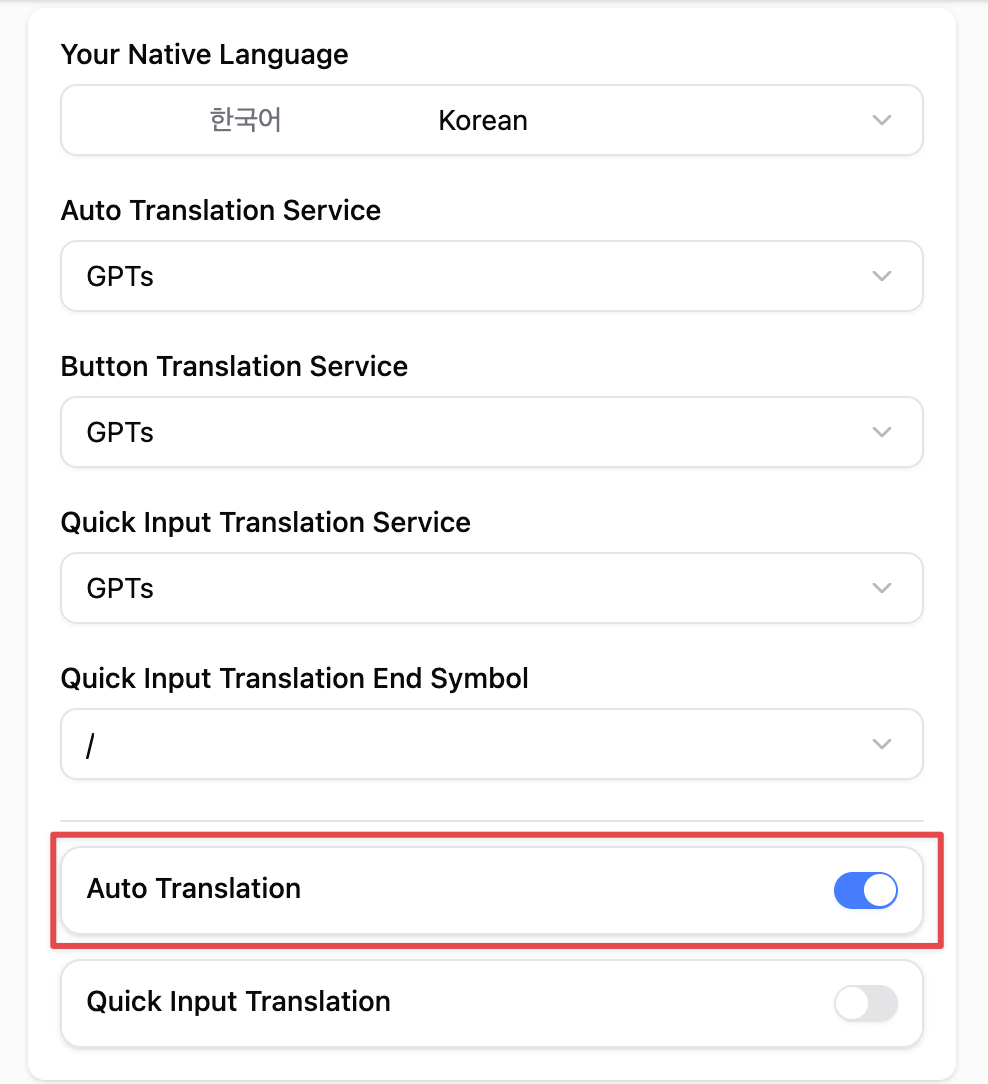
### Enable Auto Translate
Turn on the "Auto Translate" option to automatically translate incoming messages in Discord to your chosen target language.
Select a language that matches the primary language of your native language for best results.
### Overview
Watch the video for a quick demonstration of auto translation in action.
## Button Translation
### Open a Discord Channel
Navigate to the Discord channel where you want to translate messages.
### Click the Translate Button
Click the "Translate" button that appears next to each message to translate it into your selected target language.
You can translate multiple messages individually by clicking the button for each one.
### Overview
The video shows step-by-step usage of the translate button feature.
## Quick Input Translation
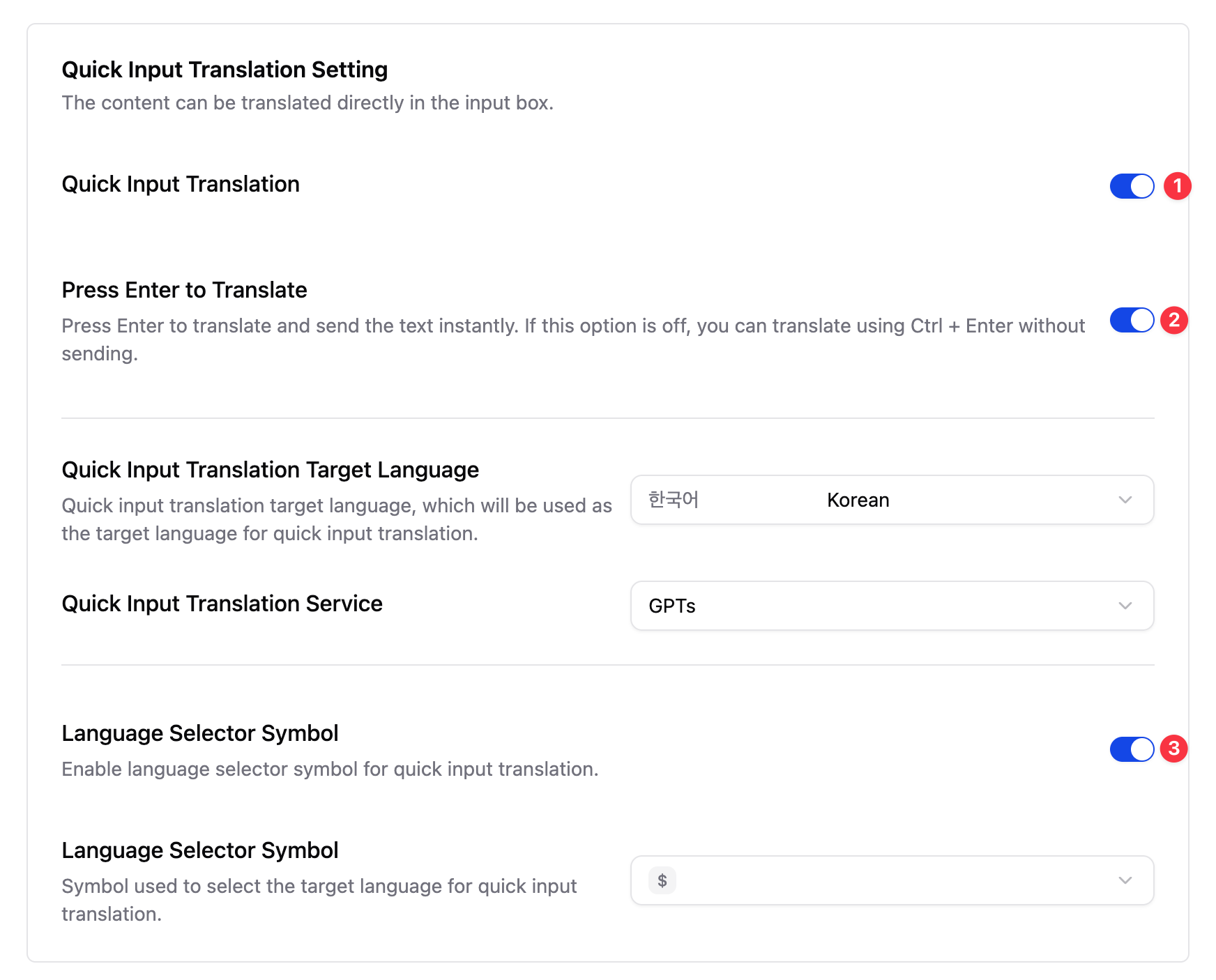
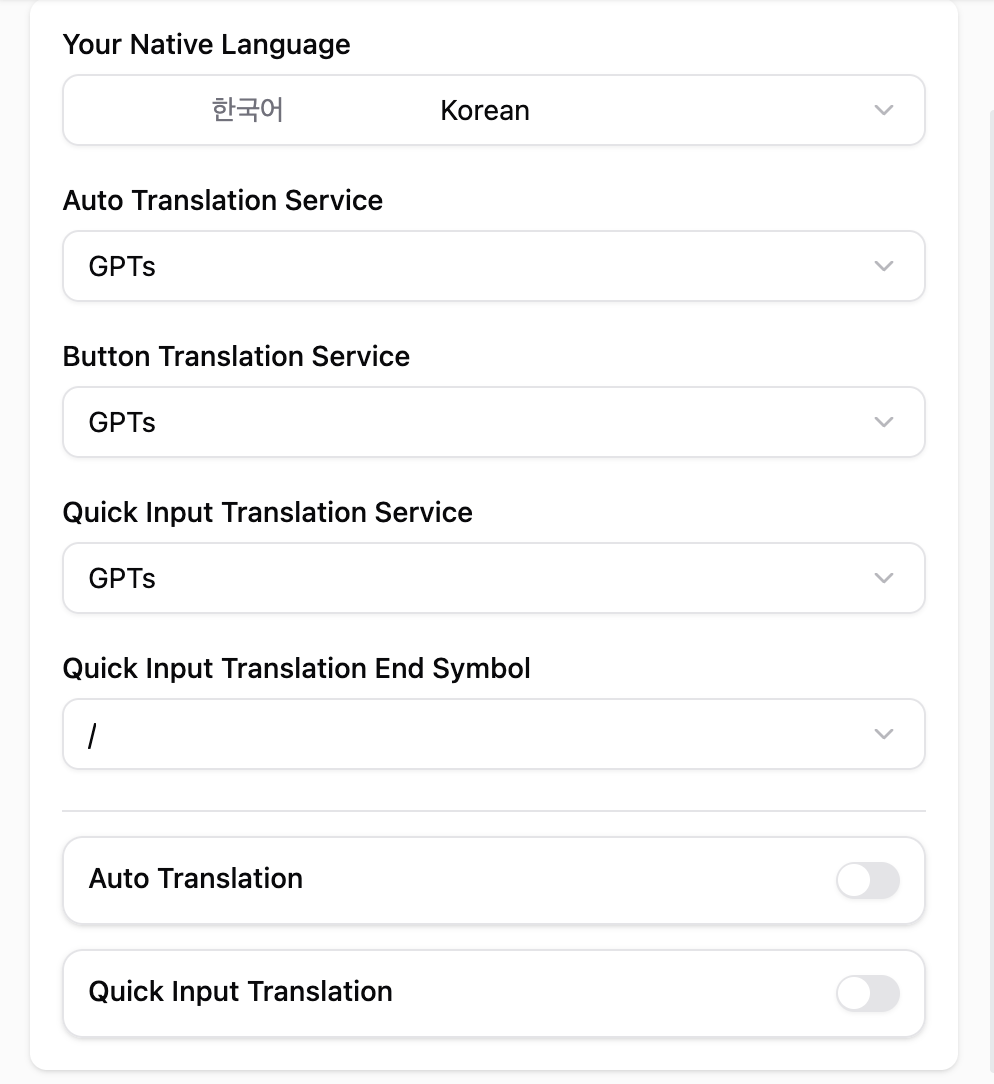
### Config Quick Input Settings
### Overview
The video demonstrates quick input translation in real-time.
## AI Translation Service Settings
### Open the Options Page
Right-click the extension icon and select "Options" to open the full settings page.
This step is required to configure AI translation services.
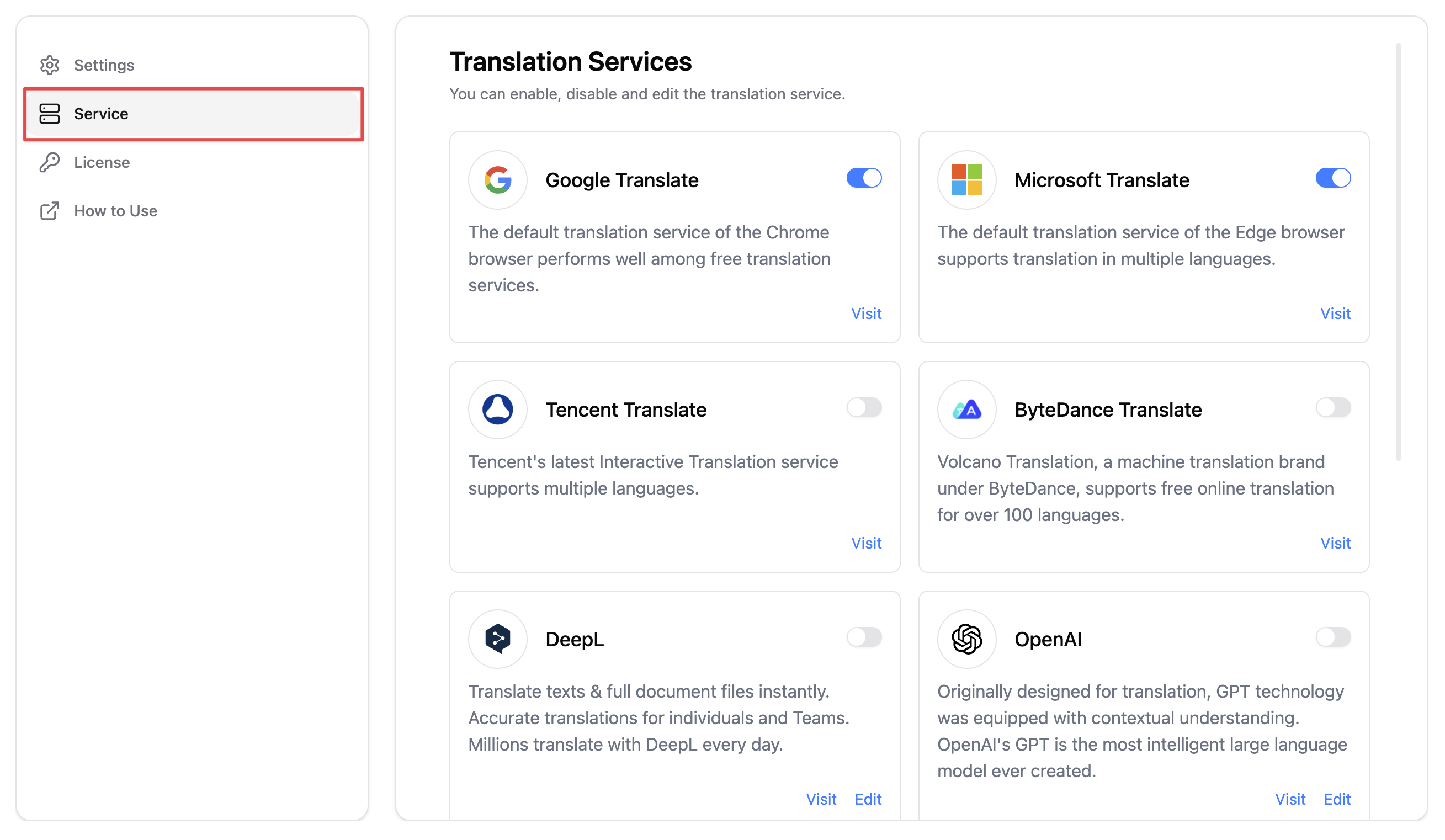
### Select the Service Tab
Navigate to the Service tab to manage AI translation services.
You can add, edit, or remove services from this tab.
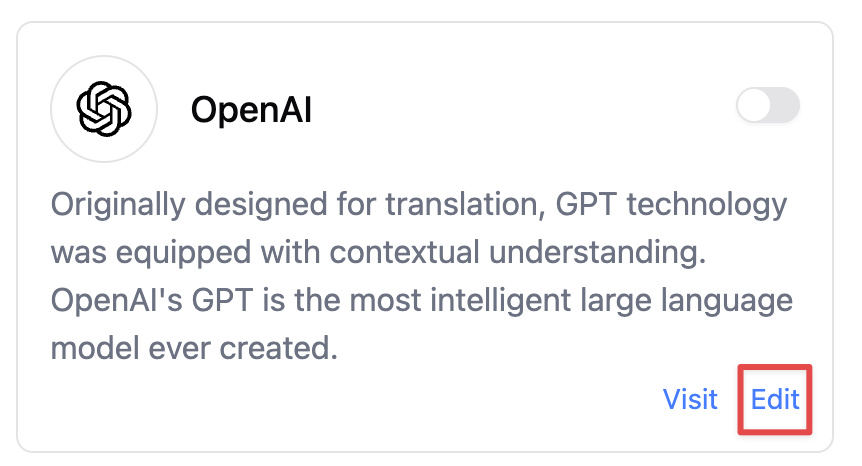
### Edit an AI Service
Click the "Edit" button next to the AI service you want to configure.
Make sure your API key and endpoint are correct to avoid connection errors.
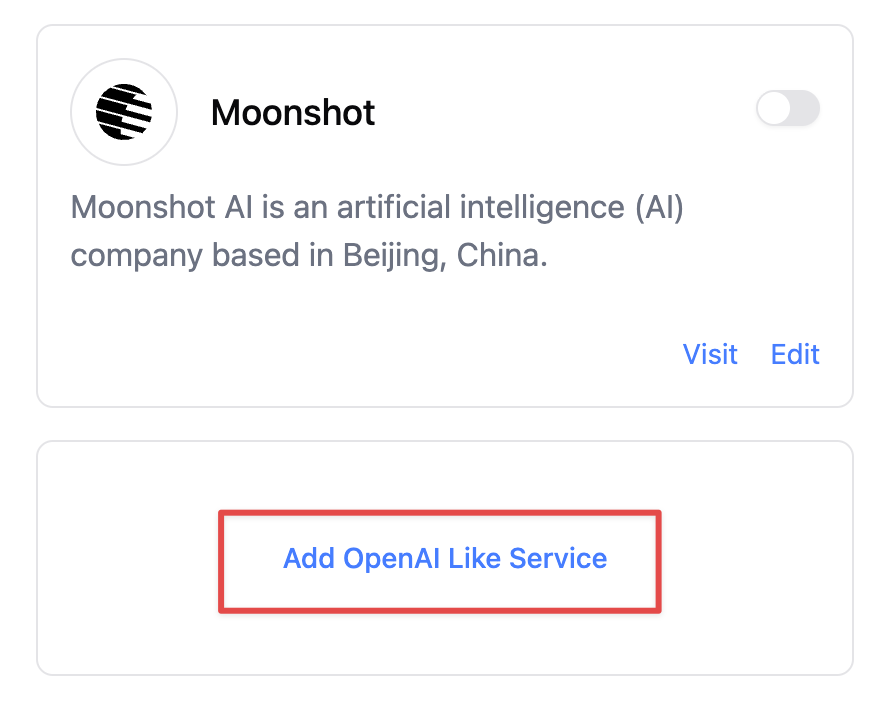
### Add a New AI Translation Service
Click "Add OpenAI-Like Service" to create a new AI service entry.
This allows you to use multiple AI services for translation.
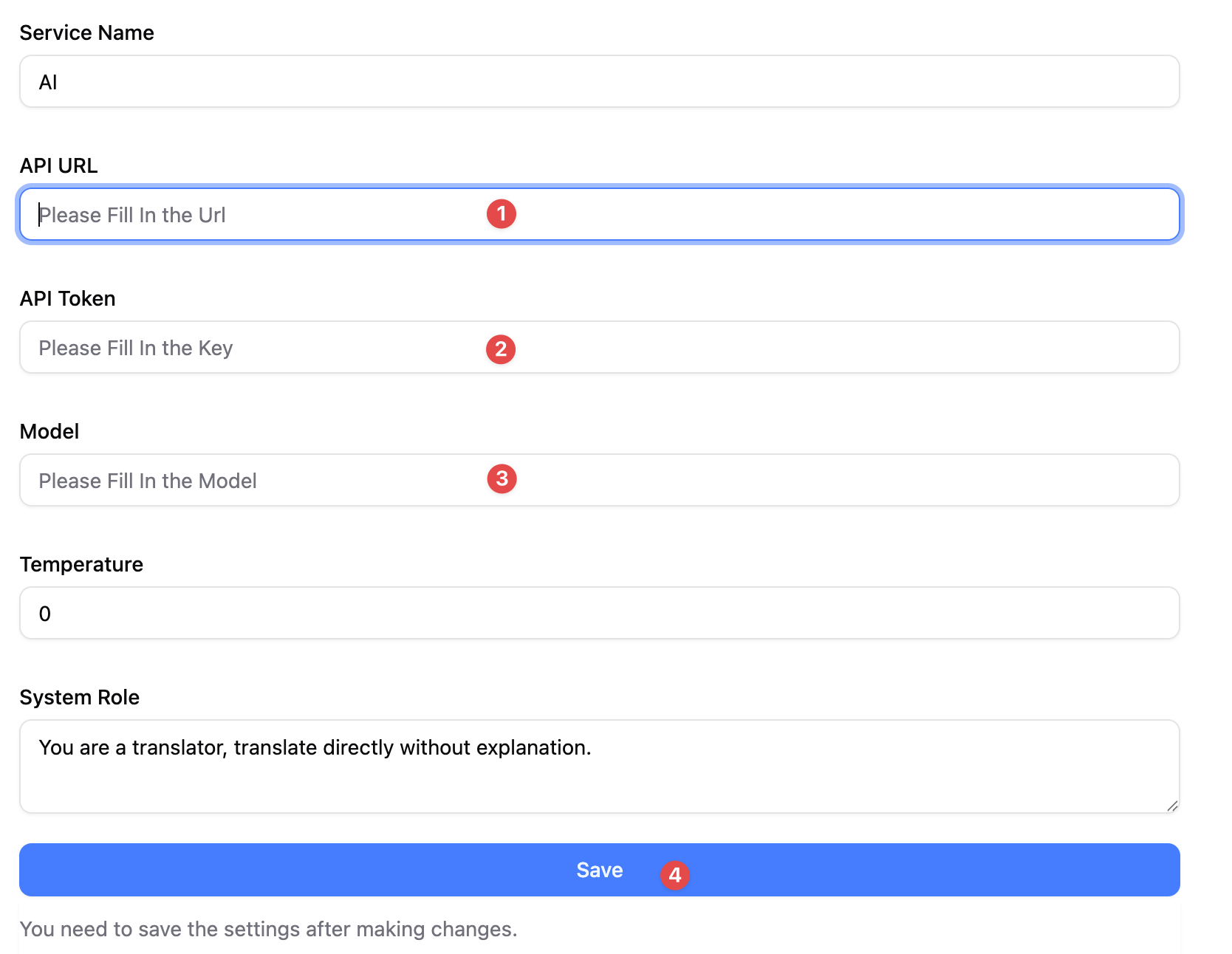
### Configure the AI Service
Fill in the required fields to set up your AI translation service properly.
Double-check your configuration before saving to ensure translations work smoothly.
 ### Full Options Page
Right-click the extension icon and select "Options" to access the full settings page. This page provides more detailed configuration options for Discord Translator.
### Full Options Page
Right-click the extension icon and select "Options" to access the full settings page. This page provides more detailed configuration options for Discord Translator.
 ## Auto Translation